> ## Documentation Index
> Fetch the complete documentation index at: https://cometchat-013b37f0.mintlify.site/llms.txt
> Use this file to discover all available pages before exploring further.

# Building A One To One/Group Chat Experience

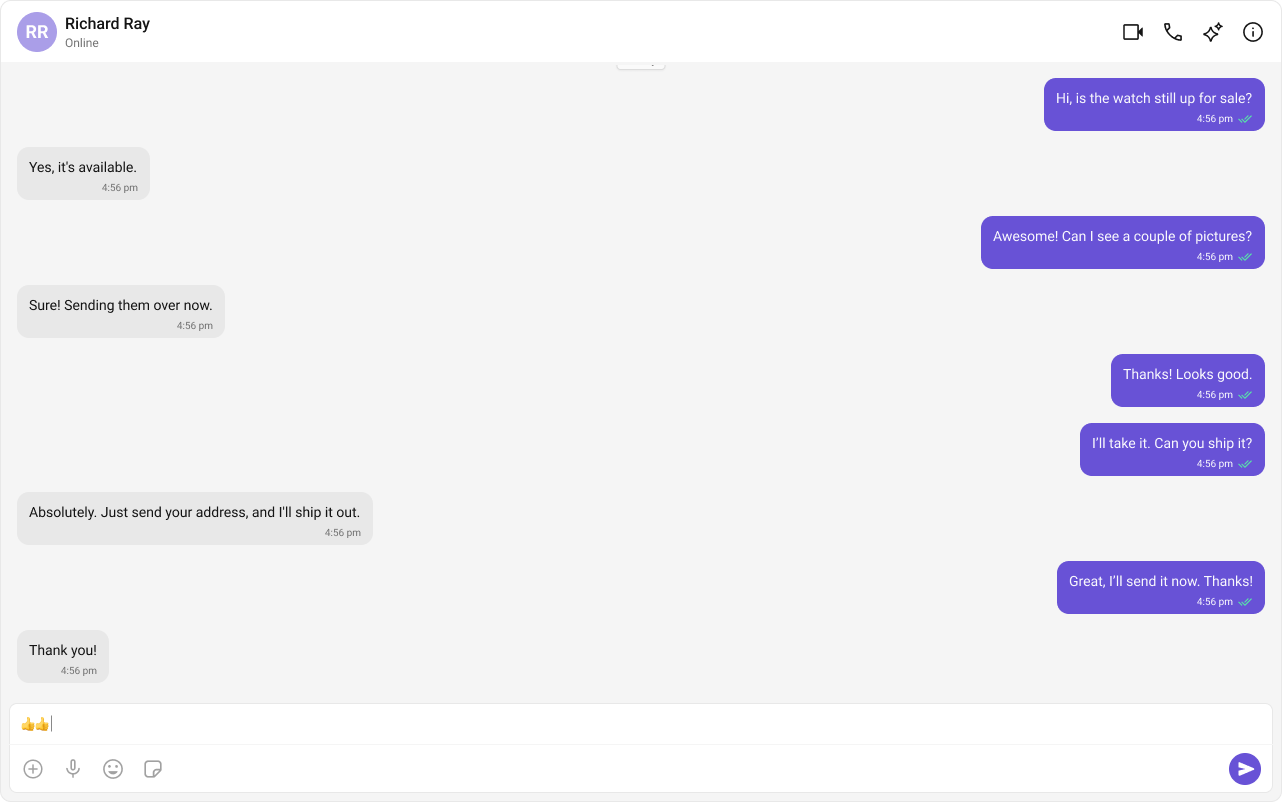
The **One-to-One Chat** feature provides a streamlined **direct messaging interface**, making it ideal for **support chats, dating apps, and private messaging platforms**. This setup eliminates distractions by focusing solely on a **dedicated chat window**.

[<img src="https://mintcdn.com/cometchat-013b37f0/Y1jO_gcbgesM4HIm/images/30d34521-play-codesandbox.svg?fit=max&auto=format&n=Y1jO_gcbgesM4HIm&q=85&s=5cf1d450f0b5eaa41a83455c3e187eea" width="165" height="32" data-path="images/30d34521-play-codesandbox.svg" />](https://link.cometchat.com/next-one-on-one)

> **Tip:** You can **fork** the sandbox, insert your **CometChat credentials** (App ID, Region, Auth Key.) in the code, and immediately preview how the UI and messages respond in real time.

***

## **User Interface Preview**

<Frame>
  <img src="https://mintcdn.com/cometchat-013b37f0/K6i8yVpj9ngiyyle/images/4d640baf-chat_experience_one_on_one-db9d6d7716241c59bb026625b05019fe.png?fit=max&auto=format&n=K6i8yVpj9ngiyyle&q=85&s=c26f2b7c6f0a9c7158b5e9ab99a3662d" width="1282" height="802" data-path="images/4d640baf-chat_experience_one_on_one-db9d6d7716241c59bb026625b05019fe.png" />
</Frame>

### **Key Components**

1. **Chat Header** – Displays recipient details and optional call/video call buttons.
2. **Message View** – Shows real-time chat history.
3. **Message Input Box** – Enables users to send messages, media, and reactions.

***

## **Step-by-Step Guide**

### **Step 1: Implement the Chat Header**

* Display **profile picture, name, and online status**.
* Add **voice and video call buttons** (optional).

```html theme={null}
<CometChatMessageHeader user={selectedUser} group={selectedGroup} />
```

### **Step 2: Build the Message View**

* Load **chat history** and **real-time messages**.
* Ensure **smooth scrolling and timestamp visibility**.

```html theme={null}
<CometChatMessageList user={selectedUser} group={selectedGroup} />
```

### **Step 3: Add the Message Composer**

* Include a **text input field**.
* Support **media uploads, file attachments, emojis, and reactions**.

```html theme={null}
<CometChatMessageComposer user={selectedUser} group={selectedGroup} />
```

***

#### **Implementation**

Now we will create the `CometChatNoSSR.tsx` & `CometChatNoSSR.css` files. Here, we will initialize the CometChat UI Kit, log in a user, and build the messaging experience using `CometChatMessageHeader`, `CometChatMessageList`, and `CometChatMessageComposer` components.

```
src/
│── CometChatNoSSR/
│   ├── CometChatNoSSR.tsx
│   ├── CometChatNoSSR.css
```

<Tabs>
  <Tab title="TypeScript">
    ```tsx CometChatNoSSR.tsx theme={null}
    import React, { useEffect, useState } from "react";
    import { CometChatMessageComposer, CometChatMessageHeader, CometChatMessageList, CometChatUIKit, UIKitSettingsBuilder } from "@cometchat/chat-uikit-react";
    import { CometChat } from "@cometchat/chat-sdk-javascript";
    import "./CometChatNoSSR.css";

    const COMETCHAT_CONSTANTS = {
      APP_ID: "",
      REGION: "",
      AUTH_KEY: "",
    };

    const CometChatNoSSR: React.FC = () => {
      const [user, setUser] = useState<CometChat.User | undefined>(undefined);
      const [selectedUser, setSelectedUser] = useState<CometChat.User | undefined>(undefined);
      // eslint-disable-next-line @typescript-eslint/no-unused-vars
      const [selectedGroup, setSelectedGroup] = useState<CometChat.Group | undefined>(undefined);

      useEffect(() => {
        const UIKitSettings = new UIKitSettingsBuilder()
          .setAppId(COMETCHAT_CONSTANTS.APP_ID)
          .setRegion(COMETCHAT_CONSTANTS.REGION)
          .setAuthKey(COMETCHAT_CONSTANTS.AUTH_KEY)
          .subscribePresenceForAllUsers()
          .build();

        CometChatUIKit.init(UIKitSettings)
          ?.then(() => {
            console.log("Initialization completed successfully");
            CometChatUIKit.getLoggedinUser().then((loggedInUser) => {
              if (!loggedInUser) {
                CometChatUIKit.login("superhero1")
                  .then((user) => {
                    console.log("Login Successful", { user });
                    setUser(user);
                  })
                  .catch((error) => console.error("Login failed", error));
              } else {
                console.log("Already logged-in", { loggedInUser });
                setUser(loggedInUser);
              }
            });
          })
          .catch((error) => console.error("Initialization failed", error));
      }, []);

      useEffect(() => {
        if (user) {
          // Fetch user or group from CometChat SDK whose chat you want to load. 

          /** Fetching User */
          const UID = "cometchat-uid-1";
          CometChat.getUser(UID).then(
            user => {
              setSelectedUser(user);
            }, error => {
              console.log("User fetching failed with error:", error);
            }
          );

          /** Fetching Group */
          // const GUID = "GUID"
          // CometChat.getGroup(GUID).then(
          //   group => {
          //     setSelectedGroup(group);
          //   }, error => {
          //     console.log("User fetching failed with error:", error);
          //   }
          // );
        }
      }, [user]);

      return user ? (
        <>
          {selectedUser || selectedGroup ? (
            <div className="messages-wrapper">
              <CometChatMessageHeader user={selectedUser} group={selectedGroup} />
              <CometChatMessageList user={selectedUser} group={selectedGroup} />
              <CometChatMessageComposer user={selectedUser} group={selectedGroup} />
            </div>
          ) : (
            <div className="empty-conversation">Select Conversation to start</div>
          )}
        </>
      ) : undefined;
    };

    export default CometChatNoSSR;
    ```
  </Tab>

  <Tab title="CSS">
    ```css CometChatNoSSR.css theme={null}
    .messages-wrapper {
        width: 100%;
        height: 100%;
        display: flex;
        flex-direction: column;
    }

    .empty-conversation {
        height: 100%;
        width: 100%;
        display: flex;
        justify-content: center;
        align-items: center;
        background: white;
        color: var(--cometchat-text-color-secondary, #727272);
        font: var(--cometchat-font-body-regular, 400 14px Roboto);
    }

    .cometchat .cometchat-message-composer {
        border-radius: 0px;
    }
    ```
  </Tab>
</Tabs>

In the code snippet above, ensure you select either a user or a group based on your chat requirement. You can also determine this dynamically depending on the conversation type.

#### **Fetching a User (One-on-One Chat)**

```javascript theme={null}
const UID = "cometchat-uid-1";
CometChat.getUser(UID).then(
    user => {
        setSelectedUser(user);
    }, error => {
        console.log("User fetching failed with error:", error);
    }
);
```

#### **Fetching a Group (Group Chat)**

```javascript theme={null}
const GUID = "GUID"
CometChat.getGroup(GUID).then(
    group => {
        setSelectedGroup(group);
    }, error => {
        console.log("User fetching failed with error:", error);
    }
);
```

### **Step 4: Disabling SSR for `CometChatNoSSR.tsx` in Next.js**

In this update, we will **disable Server-Side Rendering (SSR) for `CometChatNoSSR.tsx`** while keeping the rest of the application’s SSR functionality intact. This ensures that the **CometChat UI Kit components load only on the client-side**, preventing SSR-related issues.

#### **Disabling SSR in `index.tsx`**

Modify your `index.tsx` file to dynamically import the `CometChatNoSSR.tsx` component with `{ ssr: false }`.

```tsx index.tsx theme={null}
import { Inter } from "next/font/google";
import dynamic from "next/dynamic";

import '@cometchat/chat-uikit-react/css-variables.css';

const inter = Inter({ subsets: ["latin"] });

// Dynamically import CometChat component with SSR disabled
const CometChatComponent = dynamic(() => import("../CometChatNoSSR/CometChatNoSSR"), {
  ssr: false,
});

export default function Home() {
  return <CometChatComponent />;
}
```

#### **Why disable SSR?**

* The CometChat UI Kit depends on browser APIs (window, document, WebSockets).
* Next.js pre-renders components on the server, which can cause errors with browser-specific features.
* By setting `{ ssr: false }`, we ensure that CometChatNoSSR.tsx only loads on the client.

***

### **Step 5: Update Global CSS**

Next, add the following styles to global.css to ensure CometChat UI Kit is properly styled.

```css global.css theme={null}
:root {
  --background: #ffffff;
  --foreground: #171717;
}

@media (prefers-color-scheme: dark) {
  :root {
    --background: #0a0a0a;
    --foreground: #ededed;
  }
}

/** Give your App a height of `100%`. Keep other CSS properties in the below selector as it is. */
.root {
  height: 100%;
}

#__next {
  height: 100%;
}

html,
body {
  height: 100%;
}

html,
body {
  max-width: 100vw;
  overflow-x: hidden;
}

body {
  color: var(--foreground);
  background: var(--background);
  font-family: Arial, Helvetica, sans-serif;
  -webkit-font-smoothing: antialiased;
  -moz-osx-font-smoothing: grayscale;
}

* {
  box-sizing: border-box;
  padding: 0;
  margin: 0;
}

a {
  color: inherit;
  text-decoration: none;
}

@media (prefers-color-scheme: dark) {
  html {
    color-scheme: dark;
  }
}
```

***

### **Step 6: Run the project**

```
npm run dev
```

## **Next Steps**

### **Enhance the User Experience**

* **[Advanced Customizations](/ui-kit/react/theme)** – Personalize the chat UI to align with your brand.

***