> ## Documentation Index
> Fetch the complete documentation index at: https://cometchat-013b37f0.mintlify.site/llms.txt
> Use this file to discover all available pages before exploring further.
# ShortCut Formatter
## Introduction
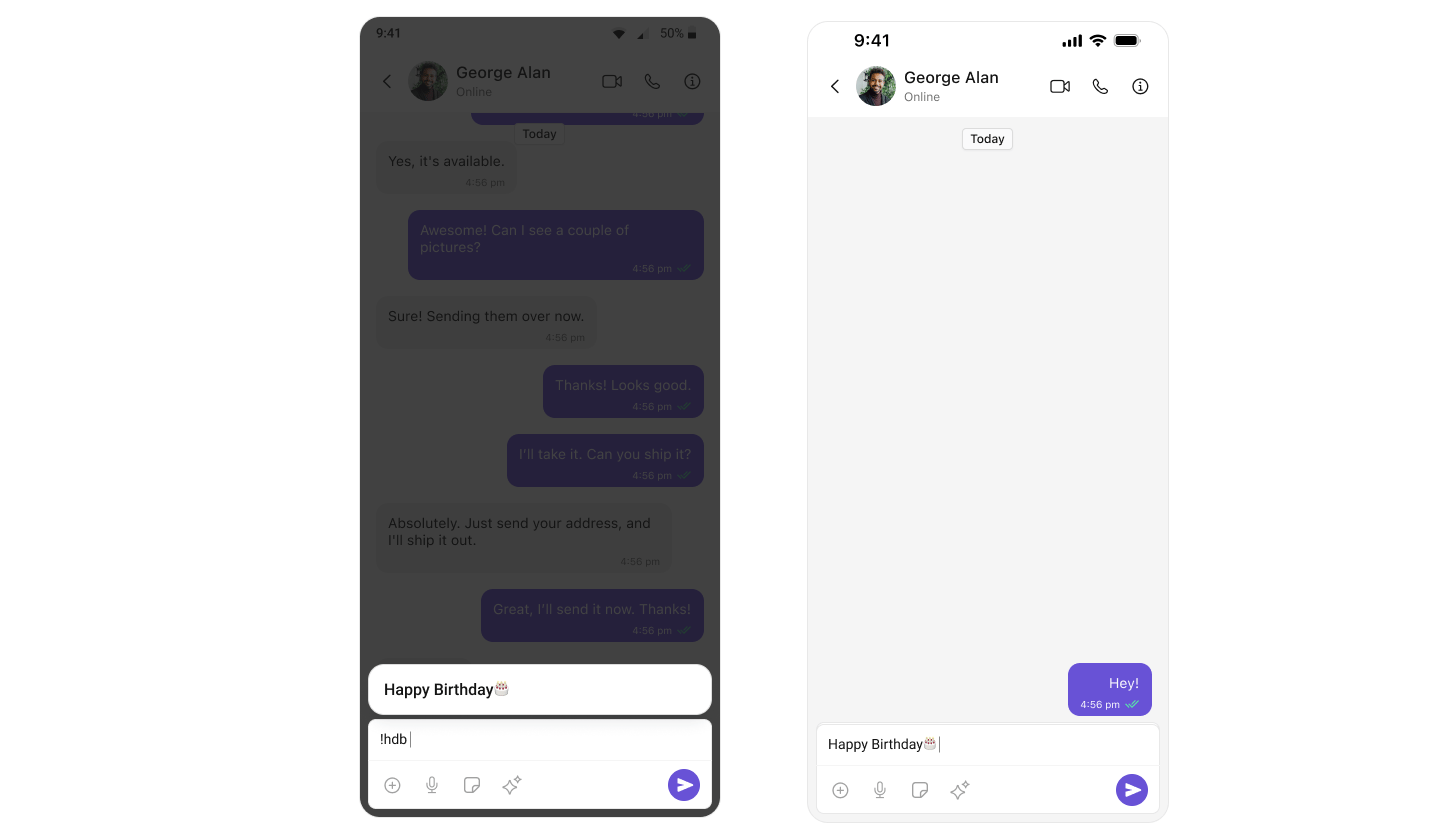
The ShortCutFormatter class extends the CometChatTextFormatter class to provide a mechanism for handling shortcuts within messages. This guide will walk you through the process of using ShortCutFormatter to implement shortcut extensions in your CometChat application.
## Setup
1. **Create the ShortCutFormatter Class**: Define the `ShortCutFormatter` class by extending the `CometChatTextFormatter` class.
```swift theme={null}
class ShortcutFormatter: CometChatTextFormatter {
private var messageShortcuts: [String: String] = [String: String]( )
private var shortcuts: [CometChatUIKitSwift.SuggestionItem] = []
}
```
2. **initializer**: Sets the `trackingCharacter` to **'!'** in the initializer of the `ShortcutFormatter` class
```swift theme={null}
override init(trackingCharacter: Character) {
super.init(trackingCharacter: "!")
}
```
3. **Prepare Regex**: Set the regular expression for shortcut detection in the `getRegex()` method of `ShortcutFormatter` class.
```swift theme={null}
override func getRegex() -> String {
return "(^|\\s)!\\w+"
}
```
4. **Prepare TrackingCharacter**: Define the `getTrackingCharacter()` method to return **'!'** as the shortcut tracking character in `ShortcutFormatter` class.
```swift theme={null}
override func getTrackingCharacter() -> Character {
return "!"
}
```
5. **Override Search Method**: Override the `search()` method to search for shortcuts based on the entered query.
```swift theme={null}
override func search(string: String, suggestedItems: (([CometChatUIKitSwift.SuggestionItem]) -> ())? = nil) {
if messageShortcuts.isEmpty == true {
CometChat.callExtension(slug: "message-shortcuts", type: .get, endPoint: "v1/fetch", body: nil) { [weak self] extensionResponseData in
guard let this = self else { return }
if let shotCutData = extensionResponseData?["shortcuts"] as? [String: String] {
this.messageShortcuts = shotCutData
var suggestedItemsList = [CometChatUIKitSwift.SuggestionItem]()
this.messageShortcuts.forEach({ (key, value) in
if key.hasPrefix(string) {
suggestedItemsList.append(CometChatUIKitSwift.SuggestionItem(id: key, name: value, visibleText: value))
}
})
suggestedItems?(suggestedItemsList)
}
} onError: { error in
print("Error occured while fetcing shot cuts: \(error?.errorDescription)")
}
} else {
var suggestedItemsList = [CometChatUIKitSwift.SuggestionItem]()
messageShortcuts.forEach({ (key, value) in
if key.hasPrefix(string) {
suggestedItemsList.append(CometChatUIKitSwift.SuggestionItem(id: key, name: value, visibleText: value))
}
})
suggestedItems?(suggestedItemsList)
}
}
```
6. **Handle prepareMessageString**: Implement the `prepareMessageString()` method to convert the base chat message into an attributed string for display in the `ShortcutFormatter` class.
```swift theme={null}
override func prepareMessageString(baseMessage: BaseMessage, regexString: String, alignment: MessageBubbleAlignment = .left, formattingType: FormattingType) -> NSAttributedString {
let message = (baseMessage as? TextMessage)?.text ?? ""
return NSAttributedString(string: message)
}
```
7. **Handle onTextTapped**: Override the `onTextTapped()` method if needed.
```swift theme={null}
override func onTextTapped(baseMessage: BaseMessage, tappedText: String, controller: UIViewController?) {
// Your code here
}
```
* Below is an example of how a `ShortcutFormatter` Swift file might look:
```swift ShortcutFormatter.swift theme={null}
import Foundation
import CometChatSDK
import CometChatUIKitSwift
class ShortcutFormatter: CometChatTextFormatter {
private var messageShortcuts: [String: String] = [String: String]()
private var shortcuts: [CometChatUIKitSwift.SuggestionItem] = []
override init(trackingCharacter: Character) {
super.init(trackingCharacter: "!")
}
override func getRegex() -> String {
return "(^|\\s)!\\w+"
}
override func getTrackingCharacter() -> Character {
return "!"
}
override func search(string: String, suggestedItems: (([CometChatUIKitSwift.SuggestionItem]) -> ())? = nil) {
if messageShortcuts.isEmpty == true {
CometChat.callExtension(slug: "message-shortcuts", type: .get, endPoint: "v1/fetch", body: nil) { [weak self] extensionResponseData in
guard let this = self else { return }
if let shotCutData = extensionResponseData?["shortcuts"] as? [String: String] {
this.messageShortcuts = shotCutData
var suggestedItemsList = [CometChatUIKitSwift.SuggestionItem]()
this.messageShortcuts.forEach({ (key, value) in
if key.hasPrefix(string) {
suggestedItemsList.append(CometChatUIKitSwift.SuggestionItem(id: key, name: value, visibleText: value))
}
})
suggestedItems?(suggestedItemsList)
}
} onError: { error in
print("Error occured while fetcing shot cuts: \(error?.errorDescription)")
}
} else {
var suggestedItemsList = [CometChatUIKitSwift.SuggestionItem]()
messageShortcuts.forEach({ (key, value) in
if key.hasPrefix(string) {
suggestedItemsList.append(CometChatUIKitSwift.SuggestionItem(id: key, name: value, visibleText: value))
}
})
suggestedItems?(suggestedItemsList)
}
}
override func prepareMessageString(baseMessage: BaseMessage, regexString: String, alignment: MessageBubbleAlignment = .left, formattingType: FormattingType) -> NSAttributedString {
let message = (baseMessage as? TextMessage)?.text ?? ""
return NSAttributedString(string: message)
}
override func onTextTapped(baseMessage: BaseMessage, tappedText: String, controller: UIViewController?) {
// Your code here
}
}
```
## Usage
1. **Initialization**: Initialize an instance of `ShortCutFormatter` in your application.
```swift theme={null}
let shortcutFormatter = ShortcutFormatter(trackingCharacter: "!")
```
2. **Integration**: Integrating the `ShortCutFormatter` into your CometChat application involves incorporating it within your project to handle message shortcuts. If you're utilizing the [CometChatMessageComposer](/ui-kit/ios/message-composer) component, you can seamlessly integrate the ShortCutFormatter to manage shortcut functionalities within your application.
* Your final integration code should look like this:
```swift theme={null}
let shortcutFormatter = ShortcutFormatter(trackingCharacter: "!")
let cometChatMessageComposer = CometChatMessageComposer()
cometChatMessageComposer.set(textFormatter: [shortcutFormatter])
```
Ensure to pass and present `cometChatConversationsWithMessages`. If a navigation controller is already in use, utilize the pushViewController function instead of directly presenting the view controller.
## Example