> ## Documentation Index
> Fetch the complete documentation index at: https://cometchat-013b37f0.mintlify.site/llms.txt
> Use this file to discover all available pages before exploring further.
# Recording(Beta)
This section will guide you to implement call recording feature for the voice and video calls.
## Implementation
Once you have decided to implement [Direct Calling](/sdk/ionic/direct-call) followed the steps to implement them. Just few additional listeners and methods will help you quickly implement call recording in your app.
You need to make changes in the `CometChatCalls.startSession()` method and add the required listeners for recording. Please make sure your callSettings is configured accordingly for [Direct Calling](/sdk/ionic/direct-call).
A basic example of how to make changes to implement recording for a direct call/ a default call:
```javascript theme={null}
import { CometChatCalls } from '@cometchat/calls-sdk-ionic';
const audioOnly = false;
const defaultLayout = true;
const showRecordingButton = true;
const callListener = new CometChatCalls.OngoingCallListener({
onRecordingStarted: (event) => {
console.log("Call recording started:", event);
},
onRecordingStopped: (event) => {
console.log("Call recording stopped:", event);
}
});
const callSettings = new CometChatCalls.CallSettingsBuilder()
.enableDefaultLayout(defaultLayout)
.setIsAudioOnlyCall(audioOnly)
.showRecordingButton(showRecordingButton)
.setCallEventListener(callListener)
.build();
// Start the call using `startSession` method of `CometChatCalls`
```
```typescript theme={null}
import { CometChatCalls } from '@cometchat/calls-sdk-ionic';
import { CallSettings } from '@cometchat/calls-sdk-ionic/dist/models/CallSettings';
import { OngoingCallListener } from '@cometchat/calls-sdk-ionic/dist/models/Listner';
const audioOnly = false;
const defaultLayout = true;
const showRecordingButton = true;
const callListener: OngoingCallListener = new CometChatCalls.OngoingCallListener({
onRecordingStarted: (event) => {
console.log("Call recording started:", event);
},
onRecordingStopped: (event) => {
console.log("Call recording stopped:", event);
}
});
const callSettings: CallSettings = new CometChatCalls.CallSettingsBuilder()
.enableDefaultLayout(defaultLayout)
.setIsAudioOnlyCall(audioOnly)
.showRecordingButton(showRecordingButton)
.setCallEventListener(callListener)
.build();
// Start the call using `startSession` method of `CometChatCalls`
```
## Settings for call recording
The `CallSettings` class allows you to customise the overall calling experience. The properties for the call/conference can be set using the `CallSettingsBuilder` class. This will eventually give you an object of the `CallSettings` class which you can pass to the `startSession()` method to start the call.
The options available for recording of calls are:
| Setting | Description |
| --------------------------------------------------------------- | ------------------------------------------------------------------------------------------------------------------------------------------------------------------------------------ |
| `showRecordingButton(showRecordingButton: boolean)` | If set to `true` it displays the Recording button in the button Layout. If set to `false` it hides the Recording button in the button Layout. **Default value = false** |
| `startRecordingOnCallStart(startRecordingOnCallStart: boolean)` | If set to `true` call recording will start as soon as the call is started. If set to `false` call recording will not start as soon as the call is started. **Default value = false** |
## Downloading Recording
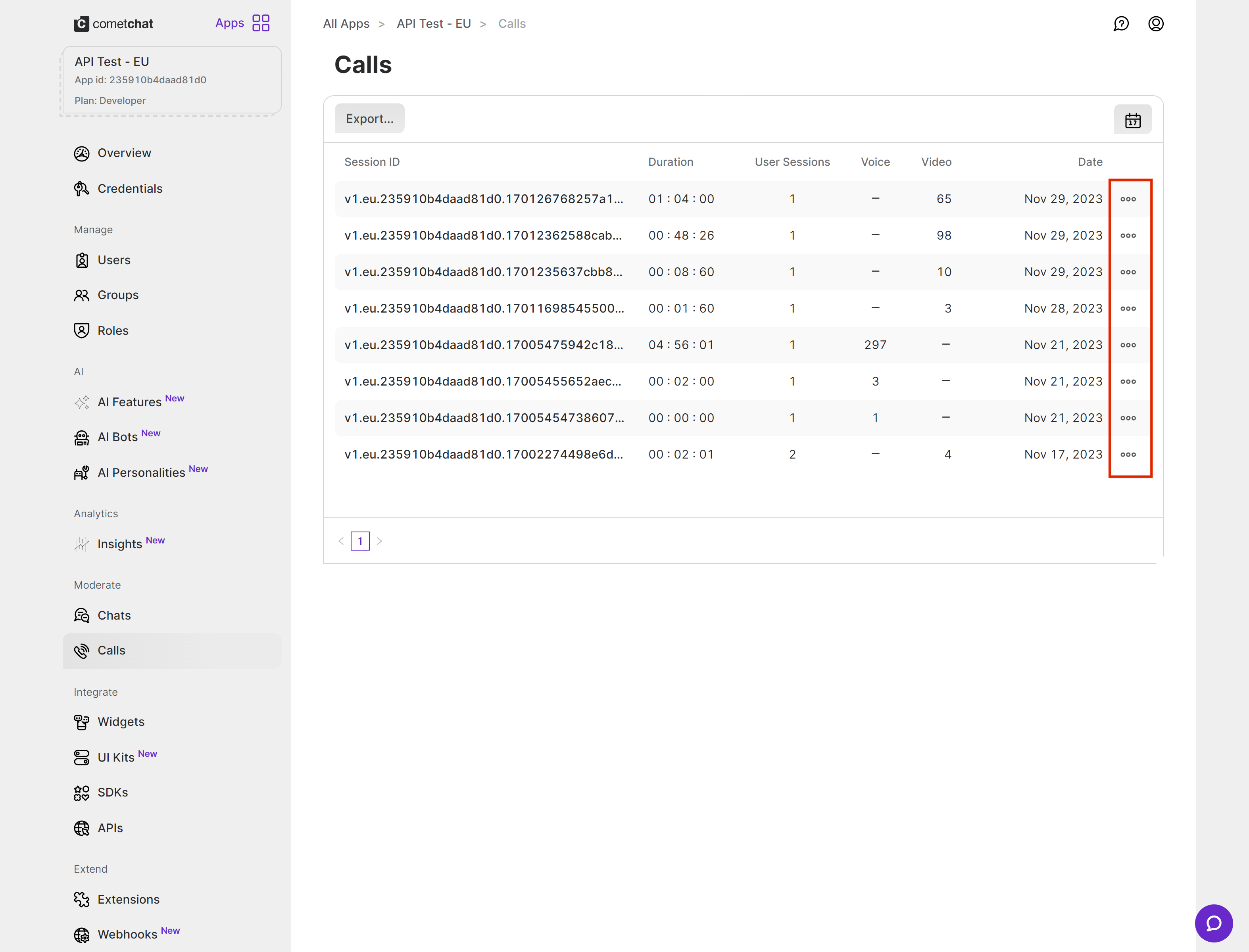
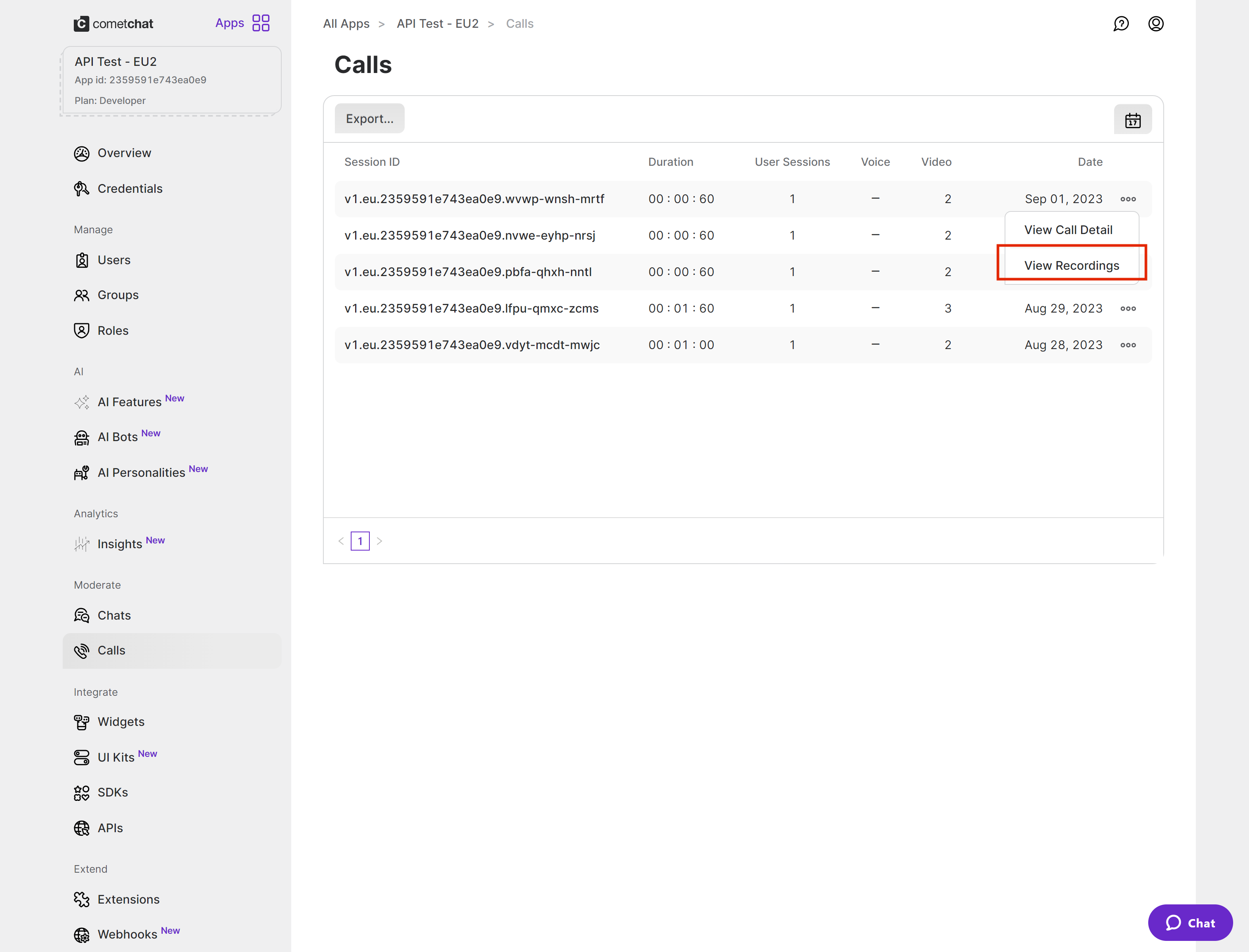
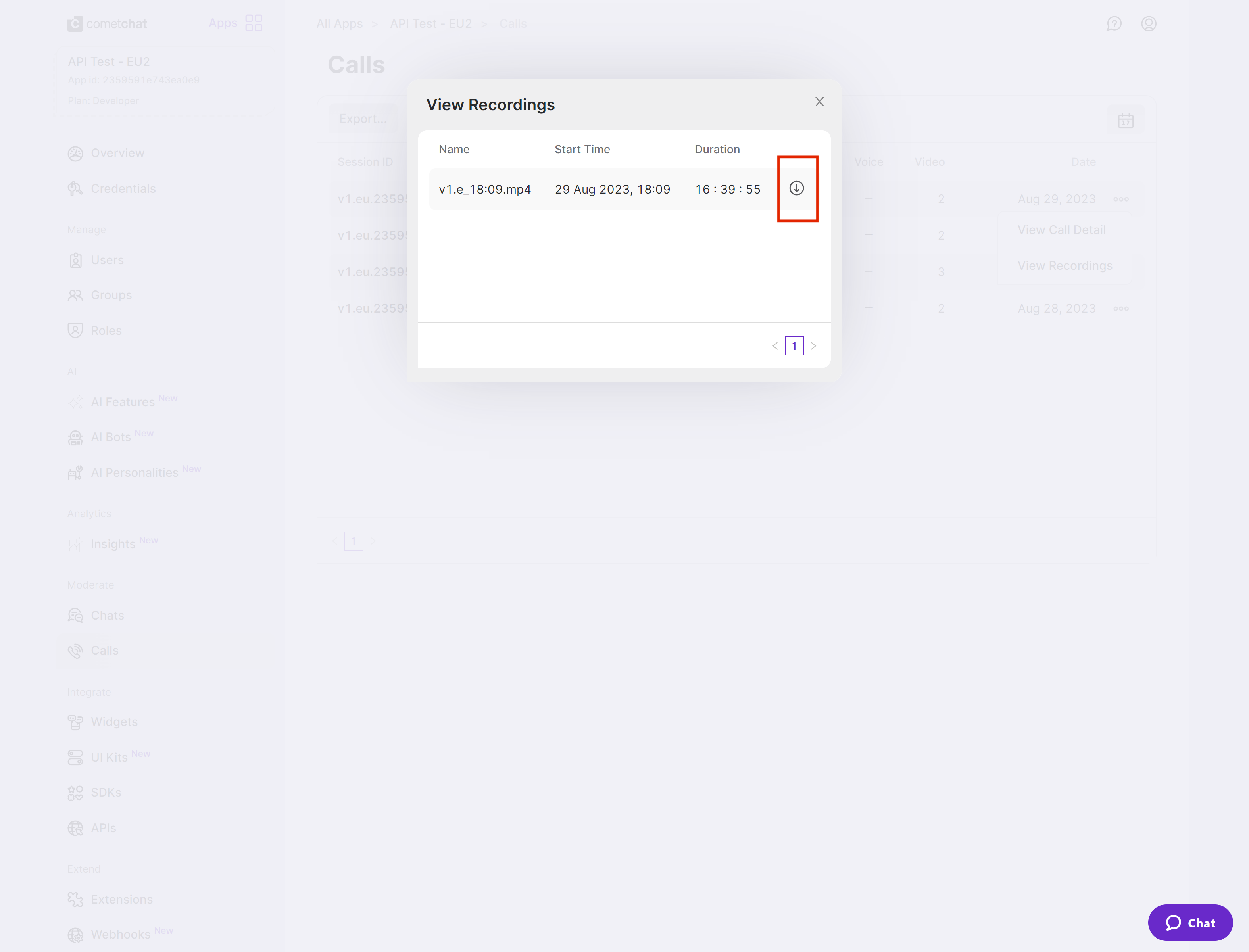
Currently, the call recordings are available on the [CometChat Dashboard](https://app.cometchat.com) under the Calls Section. You can refer to the below screenshot.