> ## Documentation Index
> Fetch the complete documentation index at: https://cometchat-013b37f0.mintlify.site/llms.txt
> Use this file to discover all available pages before exploring further.
# Report Message (Legacy)
**Legacy Notice**: This extension is considered legacy and is scheduled for deprecation in the near future. It is no longer recommended for new integrations.
Please note: Legacy extensions are no longer actively maintained and will not receive feature updates or enhancements.
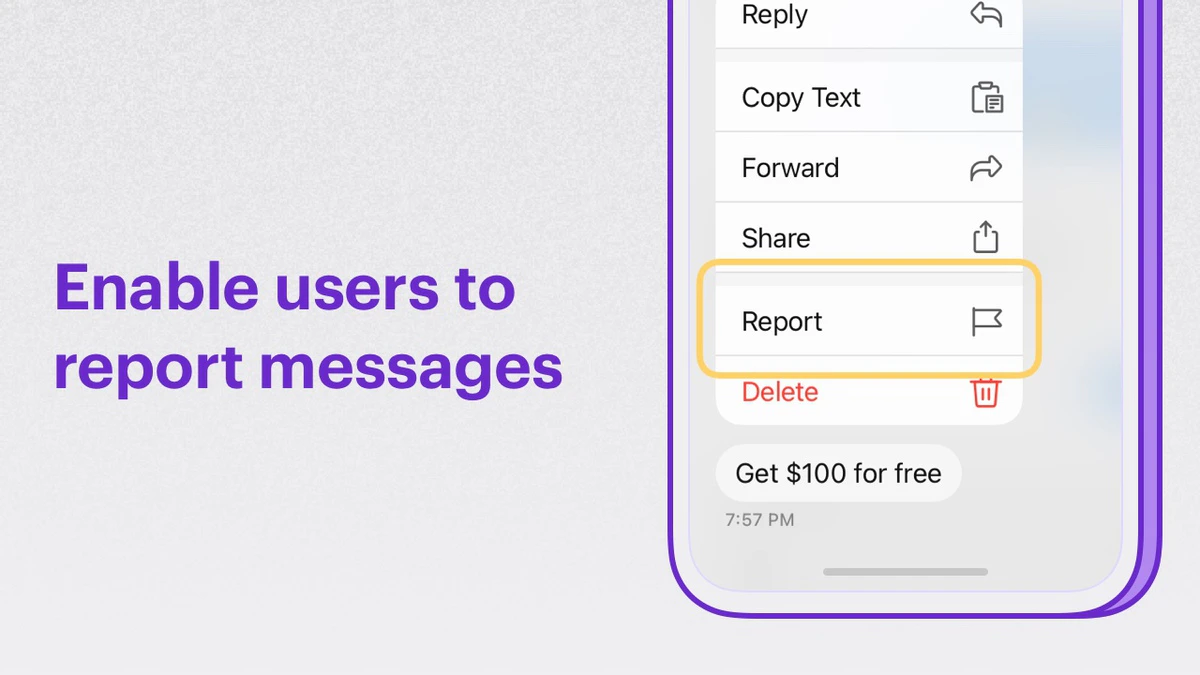
Enable your users to report messages in a group.
 **Extension settings**
1. Login to [CometChat](https://app.cometchat.com/login) and select your app.
2. Go to the Extensions section and enable the Report messages extension.
3. Open the settings for this extension.
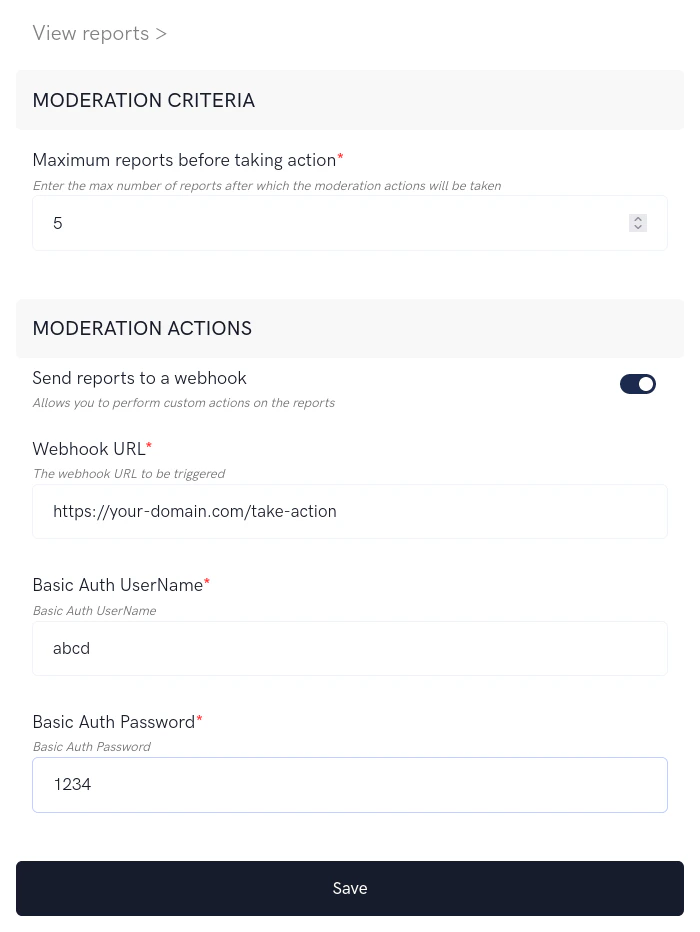
4. The settings page has the following:
* **Moderation criteria:** The max number of reports after which you want to be notified.
* **Moderation actions:** Get the list of reports on the configured Webhook URL.
**Extension settings**
1. Login to [CometChat](https://app.cometchat.com/login) and select your app.
2. Go to the Extensions section and enable the Report messages extension.
3. Open the settings for this extension.
4. The settings page has the following:
* **Moderation criteria:** The max number of reports after which you want to be notified.
* **Moderation actions:** Get the list of reports on the configured Webhook URL.
 ## How does it work?
The extension has the following functionalities:
1. Allowing end-users to report messages.
2. Allowing admins to login to the dashboard to take action on the reports.
### 1. Reporting a message
Messages can be reported in either group conversations or one-on-one conversations.
In the context menu of a message, you can have a "Report" button. Clicking it should open up a modal asking for the reason.
Here's the description of the parameters that need to be passed to the extension:
| Parameters | Value | Description |
| ---------- | ------- | --------------------------------------------- |
| msgId | Integer | The ID of the message that has to be reported |
| reason | String | The reason for reporting the message. |
Once you have the message to be reported along with the reason, make use of the `callExtension` method provided by the SDK to submit the report:
```js theme={null}
CometChat.callExtension('report-message', 'POST', 'v1/report', {
"msgId": 123,
"reason": "Contains profanity"
}).then(response => {
// { success: true }
})
.catch(error => {
// Error occurred
});
```
```java theme={null}
import org.json.simple.JSONObject;
JSONObject body=new JSONObject();
body.put("msgId", 123);
body.put("reason", "Contains profanity");
CometChat.callExtension("report-message", "POST", "/v1/report", body,
new CometChat.CallbackListener < JSONObject > () {
@Override
public void onSuccess(JSONObject jsonObject) {
//On Success
}
@Override
public void onError(CometChatException e) {
//On Failure
}
});
```
```swift theme={null}
CometChat.callExtension(slug: "report-message", type: .post, endPoint: "v1/report", body: [
"msgId": 123,
"reason":"Contains profanity"
] as [String : Any], onSuccess: { (response) in
// Success
}) { (error) in
// Error occured
}
```
### 2. View reports and take action
## How does it work?
The extension has the following functionalities:
1. Allowing end-users to report messages.
2. Allowing admins to login to the dashboard to take action on the reports.
### 1. Reporting a message
Messages can be reported in either group conversations or one-on-one conversations.
In the context menu of a message, you can have a "Report" button. Clicking it should open up a modal asking for the reason.
Here's the description of the parameters that need to be passed to the extension:
| Parameters | Value | Description |
| ---------- | ------- | --------------------------------------------- |
| msgId | Integer | The ID of the message that has to be reported |
| reason | String | The reason for reporting the message. |
Once you have the message to be reported along with the reason, make use of the `callExtension` method provided by the SDK to submit the report:
```js theme={null}
CometChat.callExtension('report-message', 'POST', 'v1/report', {
"msgId": 123,
"reason": "Contains profanity"
}).then(response => {
// { success: true }
})
.catch(error => {
// Error occurred
});
```
```java theme={null}
import org.json.simple.JSONObject;
JSONObject body=new JSONObject();
body.put("msgId", 123);
body.put("reason", "Contains profanity");
CometChat.callExtension("report-message", "POST", "/v1/report", body,
new CometChat.CallbackListener < JSONObject > () {
@Override
public void onSuccess(JSONObject jsonObject) {
//On Success
}
@Override
public void onError(CometChatException e) {
//On Failure
}
});
```
```swift theme={null}
CometChat.callExtension(slug: "report-message", type: .post, endPoint: "v1/report", body: [
"msgId": 123,
"reason":"Contains profanity"
] as [String : Any], onSuccess: { (response) in
// Success
}) { (error) in
// Error occured
}
```
### 2. View reports and take action
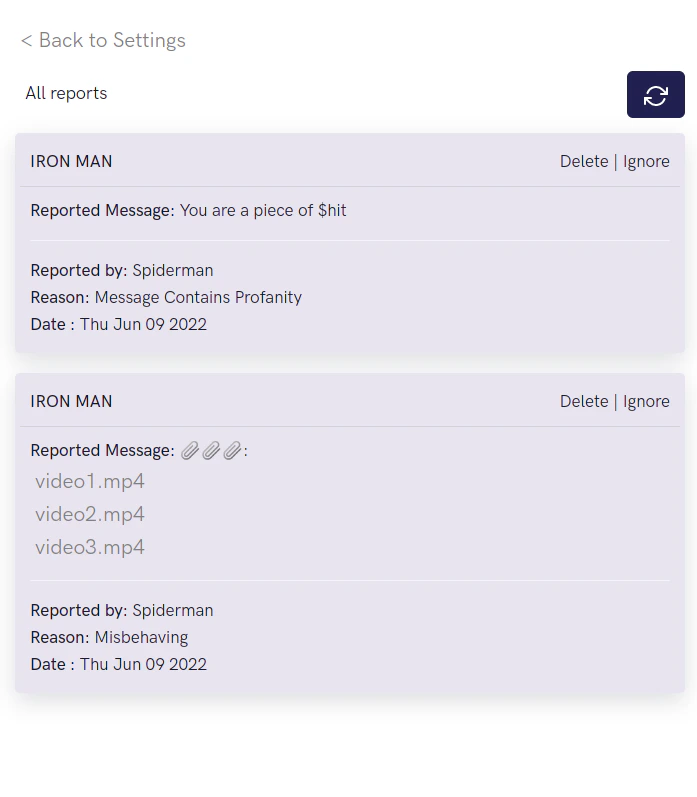 In order to list and take action on the reported users:
1. Open up the Extension's settings page
2. Click "View Reports" link. This will load all the reports.
3. The following actions can be taken for users reported in Group:
1. Delete => Reported message will be deleted.
2. Ignore => The report is ignored.
4. To load new reports, click on the Refresh button.
In order to list and take action on the reported users:
1. Open up the Extension's settings page
2. Click "View Reports" link. This will load all the reports.
3. The following actions can be taken for users reported in Group:
1. Delete => Reported message will be deleted.
2. Ignore => The report is ignored.
4. To load new reports, click on the Refresh button.